UPDATE – Now that it is announced that Jamboard will be going away next year, Figjam is a great alternative. I would highly suggest you check it out and Figjam has a lot of great resources already for your transition from Jamboard to Figjam. Check out their information today! https://www.figma.com/jamboard-edu/
One of the big reasons that I have used technology in the classroom is to support and drive collaboration between learners. This is still true as I have spent most of my time in recent years working with teachers and their own learning. I became heavily involved with Google Apps because of the ways that collaboration was built into every tool. When Jamboard came out, I was an early adopter as I saw great potential with a simple tool. While I had high hopes for all of the features that could have been integrated into Jamboard, they would never come. Instead, we now have a new tool on the block that can be used in the same ways that Jamboard was used in the past but has so many more features that it can become a great tool to aid collaboration in and out of the classroom.
Figjam is made by Figma and is part of a suite of tools. Figma has a great design tool that can be used for program design while Figjam is the one that I will focus on when talking about the classroom and teacher professional learning. There are free accounts for educators for Figjam and schools can sign up for district licensing even manage accounts from a dashboard which makes it very easy to create accounts for teachers/students as you need them.
When you create your first Figjam, you have various tools available to you from the start. In the upper left corner you will see the basic File options (save, view, …) and this is where you can turn off the multiplayer cursors. When you are sharing with others who have the ability to edit your Figjam, you will see where their cursor is. This can be really helpful when you are trying to explain the area you are working on but if you have too many people in the Figjam, this could be a little distracting. Just go to File – View – Multiplayer cursors to toggle this view on or off.
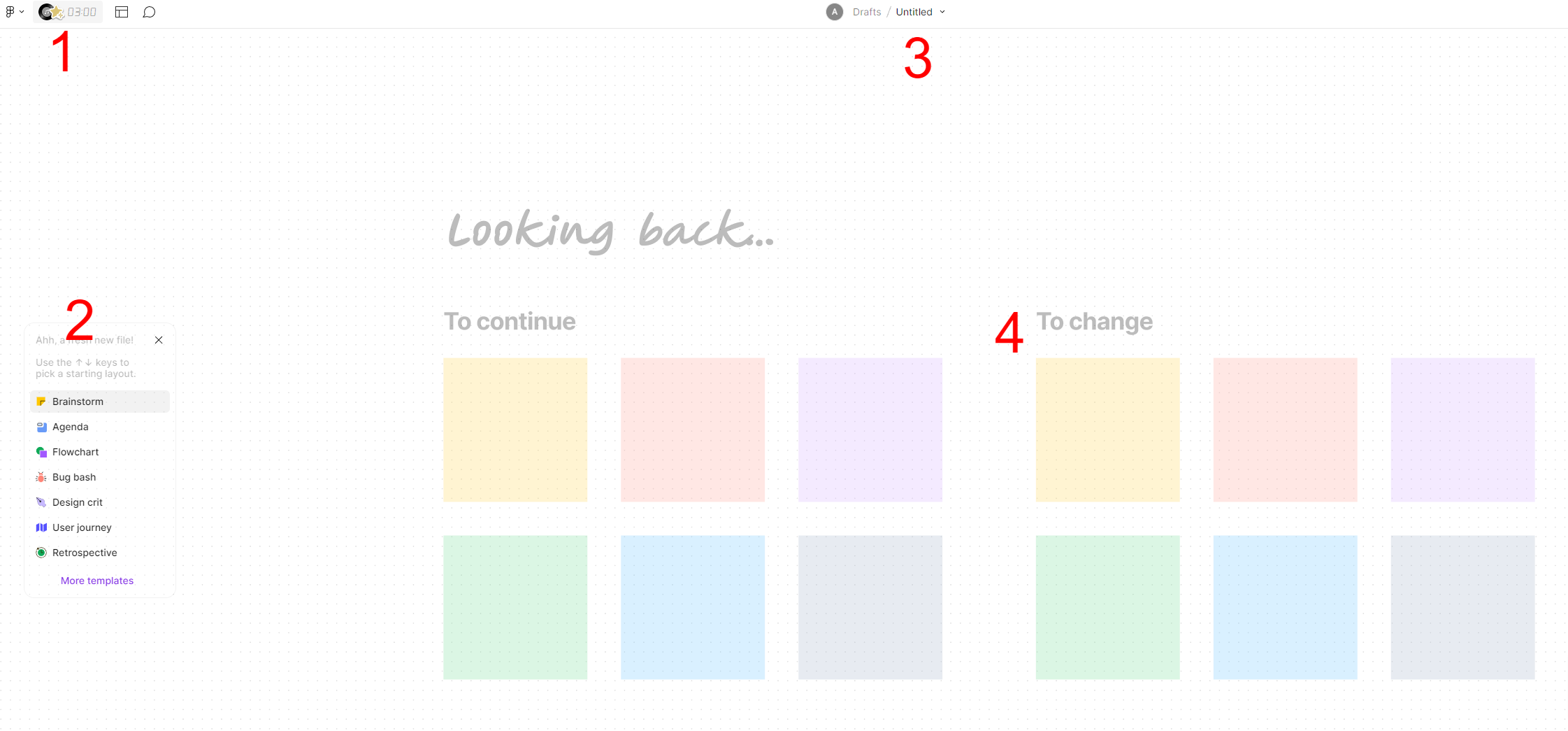
You will also see in the upper left corner (1) some of my favorite tools: the built-in timer and background music tool. These are great for creating a working atmosphere and setting a timer so students/teachers know how long they have to work before coming back to a large group or transitioning to another activity. I use a timer all the time to help me focus on the work that I need to do for a bit before I am allowed to transition to something else.
Even after you open a Figjam, you have the ability to use from a very large collection of templates (2). You can add in elements quickly using any of the templates listed or just click on the More templates option to see even more. This can help get students/teachers collaborating quickly or just help yourself get the format you need to do the work. There are a ton of templates currently available but you can even share a template you created inside of your domain.

One important step is to change the title (3) of your Figjam so you know what this Figjam is. If you are like me, you will start creating a ton of Figjams and you do not want to lose which is which.
The canvas itself for your Figjam (4) can be as big or as small as you need. The zoom option is in the upper right corner but you can easily zoom out or in to create new work areas on your canvas or you can just zoom in on the area you need to focus on. It is important to use text or color coding to indicate which area of the canvas is being used for which purpose. Use some organization technique to help you and your learners organized to make the work easier to accomplish. This can be a great tool to aid the work once you get comfortable with it.
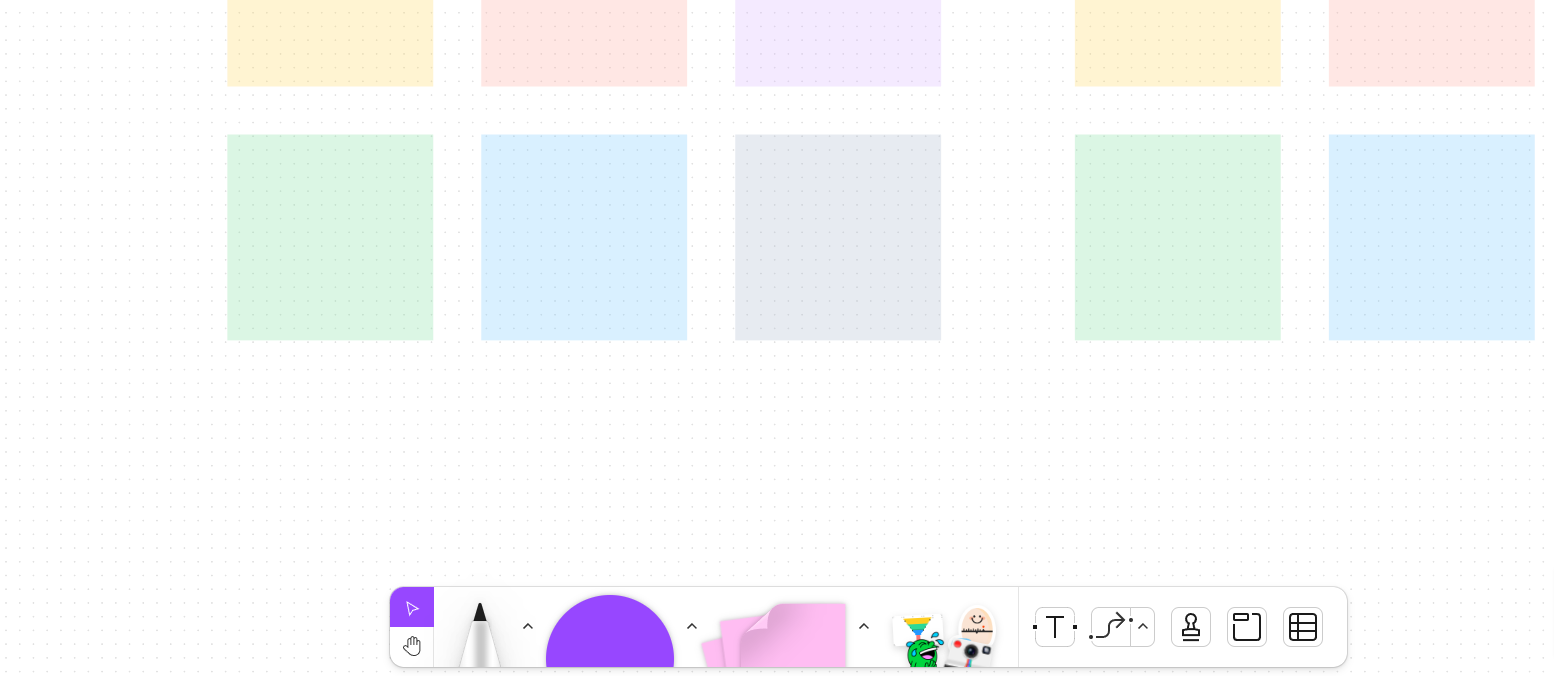
The bottom of your canvas is where you will see all of your tools to easily draw, create shapes, add notes, and more tools to create the space that you need. You can easily add text and urls, connect boxes to show the flow of ideas or a concept map, and even add some stamps for some quick communication about various aspects of the work on the Figjam.
Figjam has a lot more depth than Jamboard ever had and is easily a tool that I see a lot of potential for in the classroom or for any type of learning. Some simple ideas for how you could use it:
- Organizing ideas and brainstorming solutions
- Concept map to show how ideas are connected
- Timeline of events with images/videos added for more context
- Project or work flow charts that are used in an Agile learning space
- Venn diagrams
- Pros and Cons list
- Infographic
- Project board instead of poster board
- Create a digram to show a concept or process in nature
- Guide collaborative learning and have a place for work to come back to after the initial event
Honestly, there are many ways that this collaborative tool can be used. I have enjoyed using it in my professional learning sessions to allow participants to share ideas, work in small groups and then share with the larger group, as well as to share their action steps or big learnings. This can help make the collaboration more visible while also allowing people to collaborate without having to be sitting right next to each other or be working at the same time. Go to Figjam and start playing right now, I am sure you will find a way to use it effectively with your learners.


 Donovanscience